Step 1: Open the Windows Registry Editor
- Open the Run dialog box.
- a) Press the
Win + Rkeys simultaneously.
- a) Press the
- Launch the Registry Editor.
- a) Type
regeditinto the text field. - b) Press Enter or click OK.
- a) Type
- Handle the security prompt, if required:
- a) If prompted by User Account Control (UAC), click Yes to grant administrator privileges.
Step 2: Navigate to the Window Metrics Key
- Locate the correct folder path.
- a) Copy the following full path line:
- i)
Computer\HKEY_CURRENT_USER\Control Panel\Desktop\WindowMetrics
- i)
- b) Paste the path directly into the Registry Editor search bar at the top and press Enter.
- a) Copy the following full path line:
Step 3: Modify Scrollbar and Border Dimensions
- Update UI sizes.
- a) Double-click each of the specified string values (
REG_SZ) in the right-hand pane. - b) Modify their data fields according to your preferences (calculated using the formula: {Pixels} = {{Twip Value}} { -15}
- ii) PaddedBorderWidth: Change the value from
-58(approx. 4 pixels) to-120(8 pixels) or-180(12 pixels) to widen the invisible mouse-grab target area around window edges. - iii) BorderWidth: Change the value from
-12to-30or-45to increase visible window frame thickness.
- ii) PaddedBorderWidth: Change the value from
- i) ScrollWidth / ScrollHeight: Change the value from
-255(17 pixels) to-325or-400for a wider, high-contrast scrollbar target.
- a) Double-click each of the specified string values (
Step 4: Apply Changes Automatically Without Signing Out
If you don’t want to sign out or restart the PC, killing “explorer.exe” will do the same.
- Force a desktop shell refresh to inherit the new UI sizes immediately without losing your running applications.
- a) Open Task Manager by pressing
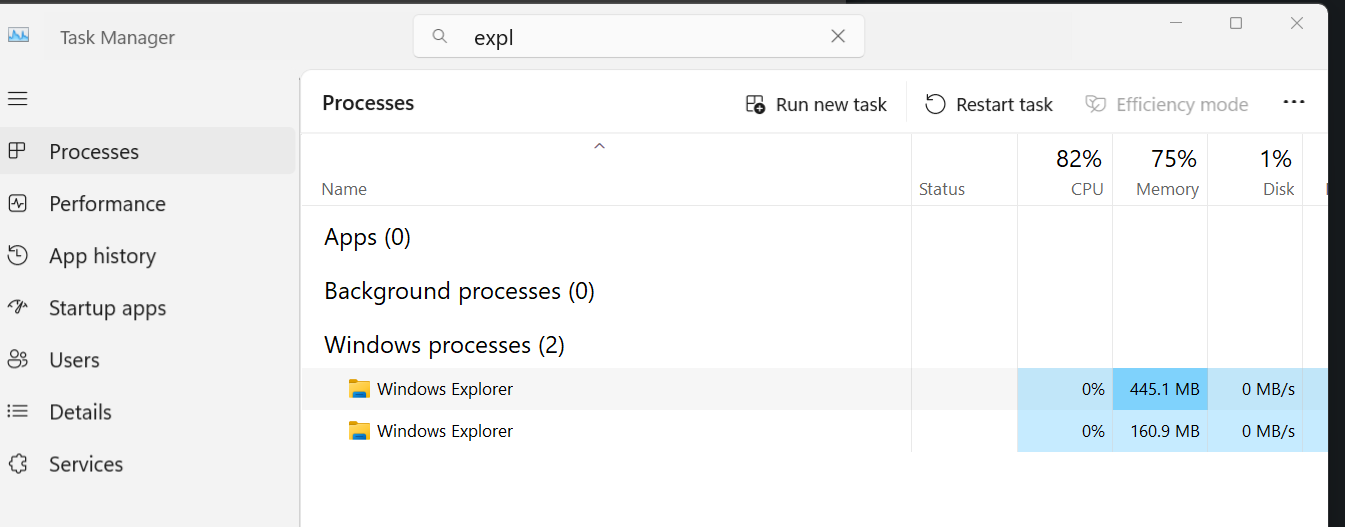
Ctrl + Shift + Esc. - b) Ensure you are on the Processes tab.
- c) Locate the Windows shell application.
- i) Scroll down to the Windows Processes section near the bottom.
- ii) Select Windows Explorer.
- (Protip: let the computer do the search by type “expl” in the search field)
- d) Execute the reload.
- i) Right-click Windows Explorer.
- ii) Click Restart from the context menu.
- e) Verify implementation.
- i) The taskbar and desktop interface will momentarily disappear and reload.
- ii) Updated dimensions will apply instantly to all active windows.
- a) Open Task Manager by pressing
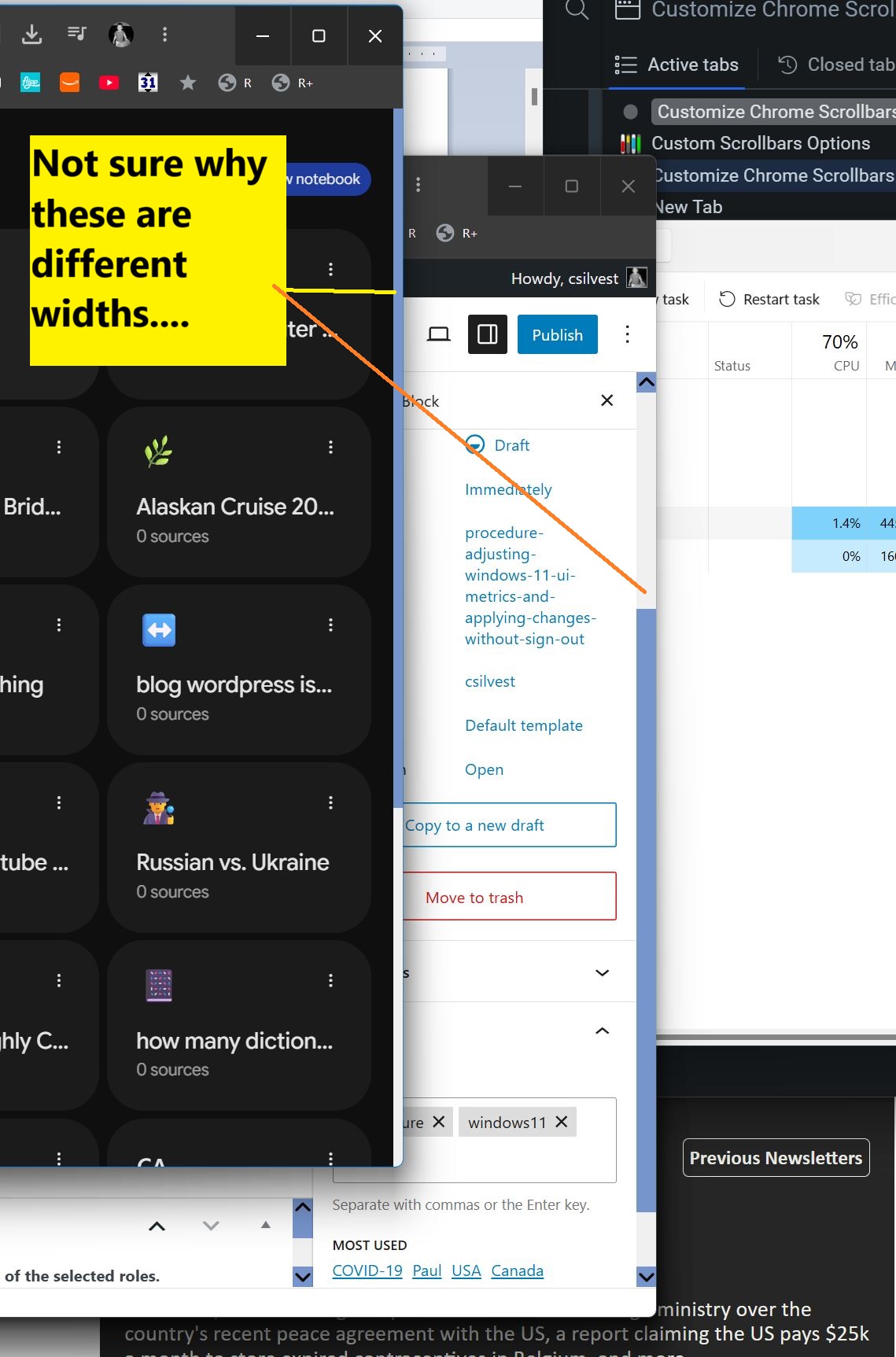
Here’s how chrome looks on my PC now. Not sure why the vertical scrollbar is wider on the one in the background, but I’ll take it. Note that the light blue thumb is set by the Chrome extension “Custom Scrollbars“; might get rid of it and see if the registry changes above are enough.